
Every Windows installation relies on a software license granted under a specific distribution channel.
Whether you are preparing to upgrade your motherboard, building a new custom PC and hoping to transfer your existing operating system, or auditing a fleet of refurbished office computers, knowing your exact license type is essential.
Microsoft distributes Windows through three primary license channels: Retail, OEM (Original Equipment Manufacturer), and Volume. Each channel carries distinct legal terms, pricing structures, activation mechanisms, and—most importantly—transferability rights.
A Retail key can move between machines for years, whereas an OEM key is permanently tied to the first motherboard it touches. Meanwhile, an unauthorized Volume key sold online can abruptly deactivate without warning when its licensing server falls out of compliance.
This guide provides a comprehensive, step-by-step walkthrough for determining your exact Windows license type across Windows 11 and Windows 10 using built-in Windows diagnostic tools, Command Prompt scripts, PowerShell CIM queries, and Windows Settings.
The Three Windows License Channels Explained
Before running diagnostics, you must understand what each license channel represents and how Microsoft enforces its hardware rights.
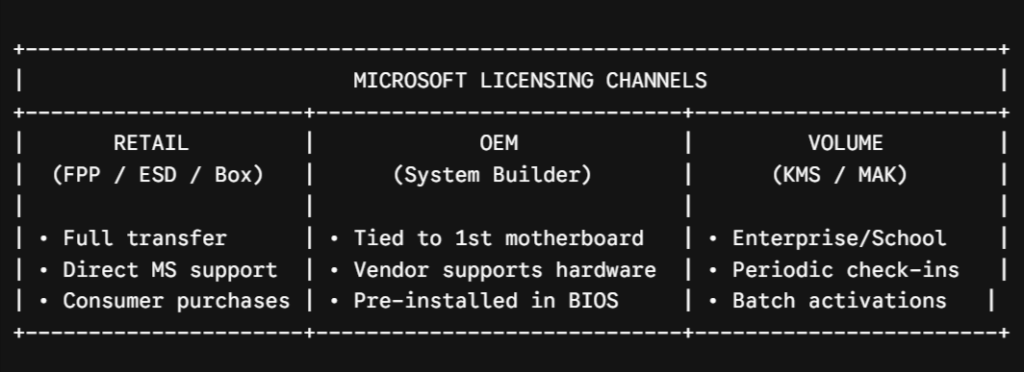
Retail License (Full Packaged Product / ESD)
A Retail license—historically known as a Full Packaged Product (FPP) or Electronic Software Download (ESD)—is the consumer license purchased directly from Microsoft, authorized physical retailers, or certified online storefronts.
- Transferability: 100% transferable. You can remove the license from an old computer and activate it on a newly built or purchased machine, as long as it runs on only one PC at a time.
- Hardware Lock: None. You can replace your motherboard, CPU, storage drives, and entire platform without forfeiting the license.
- Support: Microsoft provides direct customer and technical support for installation and activation issues.
- Cost: Highest initial purchase price among the three channels.
OEM License (Original Equipment Manufacturer)
OEM licenses are sold in bulk directly to hardware manufacturers (such as Dell, HP, Lenovo, ASUS, and Acer) as well as boutique system builders and individual PC builders via System Builder kits.
- Transferability: Zero. Under the Microsoft End User License Agreement (EULA), an OEM license becomes inextricably bound to the original PC's motherboard (specifically the unique hardware hash generated during initial activation).
- Hardware Lock: High. Replacing your storage drive, GPU, or RAM will not affect activation. However, replacing the motherboard (unless performed as an in-warranty replacement with an identical board model) constitutes a “new computer” in Microsoft's activation subsystem, invalidating the license.
- Activation Storage: On modern laptops and pre-built desktops, the OEM product key is embedded directly into the motherboard's UEFI/BIOS firmware table (OA3 – OEM Activation 3.0).
- Support: The hardware manufacturer, not Microsoft, is legally responsible for technical support.
Volume License (GVLK, KMS, and MAK)
Volume licenses are designed for business enterprises, government institutions, and educational organizations to deploy Windows across tens, hundreds, or thousands of workstations without manually entering unique 25-character keys on each device.
Volume licensing operates through two primary activation architectures:
- KMS (Key Management Service): Workstations activate against a local server hosted on the organization's network using a Generic Volume License Key (GVLK). Devices must reconnect to the KMS host at least once every 180 days to renew their activation lease. If a device stays off the network for more than 180 days, Windows enters a grace period and eventually deactivates.
- MAK (Multiple Activation Key): A single master key connects directly to Microsoft's activation servers over the internet to activate a predetermined block of machines (e.g., 500 activations). Once activated, the machine remains permanently active without requiring 180-day network check-ins, but the key cannot be reused once the organization reaches its activation limit.
Warning Regarding Gray-Market Keys: Many ultra-cheap product keys sold on third-party auction sites and discount forums are illegally resold KMS or MAK volume keys. While they may activate immediately, they often deactivate weeks or months later when the originating company's volume agreement expires, the KMS server goes offline, or Microsoft blacklists the overused MAK.
Quick Reference Comparison
| Feature / Property | Retail License (FPP / ESD) | OEM License (DM / SLP / COA) | Volume License (KMS / MAK) |
| Target Audience | General Consumers & Builders | Hardware OEMs & System Builders | Enterprise, Education, Govt |
| Transferable to New PC? | Yes (1 PC at a time) | No (Locked to motherboard) | No (Belongs to Organization) |
| Major Hardware Swap Allowed? | Yes (Full platform swaps) | Limited (Storage/GPU only) | Depends on IT Policy |
| Where Key is Stored | Microsoft Account / Email / Box | Motherboard UEFI/BIOS (OA3) | Network KMS Host or IT Deployment |
| Activation Duration | Permanent / Lifetime | Permanent on original board | 180 Days (KMS) or Permanent (MAK) |
| Support Source | Microsoft Support | PC Manufacturer (Dell, HP, etc.) | Organization IT Department |
| Digital License Linking? | Yes (Linked to personal MSA) | Yes (Tied to hardware profile) | No (Controlled by Azure AD/Domain) |
Method 1: The Definitive Check Using Windows Script Host (slmgr)
The most reliable, definitive method to identify your license channel on any modern version of Windows is the Software Licensing Management Tool (slmgr.vbs). This built-in Visual Basic script queries the Windows Software Licensing Protection subsystem directly.
Step-by-Step Execution:
- Press
Windows Key + Rto open the Run dialog box (or open Windows Terminal / Command Prompt). - Type the following command and press
Enter:
DOSslmgr.vbs /dli - A Windows Script Host dialog box will appear on your desktop within 2–5 seconds and display basic licensing information.
+------------
| Windows Script Host           [X]
+------------
| Name: Windows(R), Professional edition
| Description: Windows(R) Operating System, RETAIL channel
| Partial Product Key: 3V66T
| License Status: Licensed
+-----------------
Decoding the slmgr.vbs /dli Output
Look specifically at the second line labeled Description:
RETAIL channel: Your copy was purchased as a standalone retail product or upgraded via the Microsoft Store. It possesses full transfer rights to another PC.OEM_DM channel/OEM_SLP channel/OEM_COA_NSLP channel: Your license is an OEM copy permanently tied to the machine's motherboard.- OEM_DM (Digital Marker): Modern OEM license embedded directly into the motherboard UEFI firmware.
- OEM_SLP (System Locked Pre-installation): Legacy OEM activation method used on older Windows 7/8 era PCs activating via BIOS SLIC tables.
- OEM_COA_NSLP (Non-System Locked Pre-installation): System builder OEM key provided on a physical Certificate of Authenticity sticker.
VOLUME_KMSCLIENT channel: Your installation is configured to activate against a local corporate or institutional Key Management Service.VOLUME_MAK channel: Your installation is running an enterprise Multiple Activation Key.
Deep Inspection: Running slmgr.vbs /dlv for Detailed Diagnostics
If you require deeper forensic licensing data—such as your activation ID, remaining grace periods, or KMS host server addresses—use the detailed licensing flag.
- Open Command Prompt or PowerShell (Running as Administrator is recommended for full diagnostic readouts).
- Execute:
DOSslmgr.vbs /dlv - A large Windows Script Host window will open with exhaustive technical parameters.
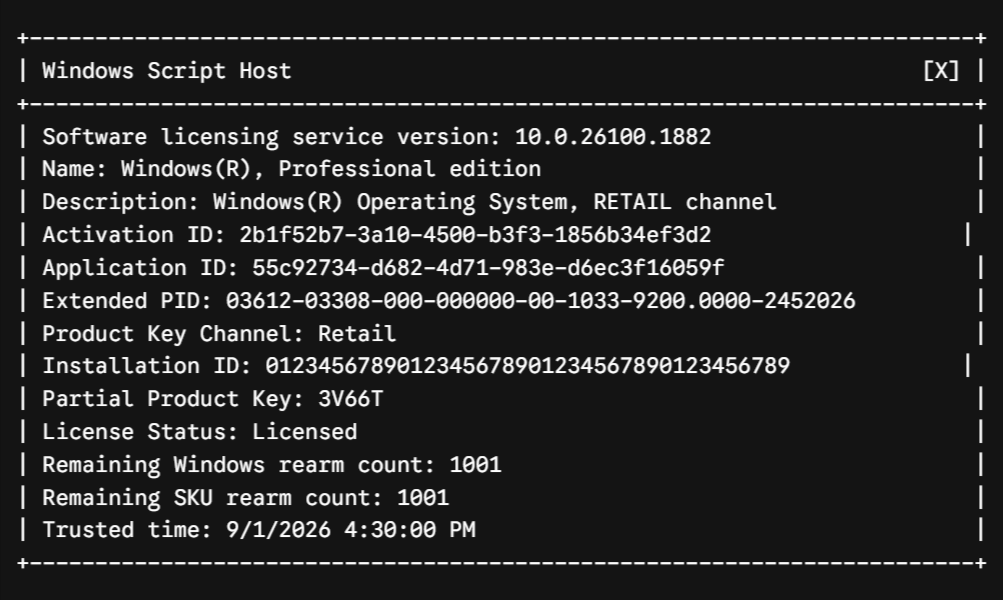
Critical Fields in /dlv to Analyze
- Product Key Channel: Explicitly specifies
Retail,OEM:DM,Volume:GVLK, orVolume:MAK. - License Status: Confirms whether the system is actively
Licensed,Notification(unactivated/expired), or in aGrace Period. - KMS Machine IP / DNS Details: If you are on a Volume license, this section reveals the exact network name and port of the internal activation server your PC queries. If you are a home user and see random external IP addresses or third-party server names listed here, your PC was activated using an illegal KMS emulator tool.
Checking for Expiration Dates via slmgr.vbs /xpr
Genuine Retail and standard OEM licenses are perpetual—they do not expire. However, Volume KMS client installations operate on rolling expiration leases. You can check your expiration state instantly:
- Press
Windows Key + R. - Type:
DOSslmgr.vbs /xpr - Press
Enter.
Interpreting the Expiration Popup
- “The machine is permanently activated”: Standard for genuine Retail, OEM, and Volume MAK installations.
- “Volume activation will expire [Date/Time]”: The machine is on a Volume KMS license. It must connect to the corporate KMS host before that date to extend the expiration window by 180 days.
- “Windows is in Notification mode”: The license has expired or failed validation; the operating system will restrict personalization settings and display desktop watermarks.
Method 2: Checking License Status in Windows Settings
Windows Settings provides an overview of your activation state, edition, and digital license association.
On Windows 11
- Open Settings (
Windows Key + I). - In the left sidebar, click System.
- Scroll down the right pane and select Activation.
- Observe the Activation state banner and expand the drop-down menu.
Settings > System > Activation
---------
Activation state: Active

Windows is activated with a digital license linked to your Microsoft account.

Upgrade your edition of Windows
[ Open Store ]
----------
On Windows 10
- Open Settings (
Windows Key + I). - Click Update & Security.
- Select Activation from the left-hand navigation list.
- Check the status listed next to Activation.
Understanding the Settings Output
Windows Settings summarizes your license using specific phrasing:
- “Windows is activated with a digital license”: A license (Retail, OEM, or an upgrade entitlement) is registered to your computer's unique hardware profile on Microsoft's cloud servers.
- “Windows is activated with a digital license linked to your Microsoft account”: The digital license is bound to your personal Microsoft Account (MSA). This lets the built-in Activation Troubleshooter transfer the license if you make a major hardware swap.
- “Windows is activated using your organization's activation service”: The device is using a Volume KMS/MAK license managed by an enterprise Active Directory or network server.
Crucial Distinction: A “Digital License” is not a separate license channel. It is an activation delivery method. A digital license can stem from an OEM base, a Retail base, or a free upgrade path (such as upgrading an older Windows 7/8/10 key to Windows 11). To know whether that digital license is transferable, you must refer to the
slmgr.vbs /dliresult.
Method 3: Extracting the Motherboard UEFI/BIOS OEM Key
Most laptops and branded desktop computers (Dell, Lenovo, HP, Acer) come with a factory OEM key permanently burned into the motherboard's ACPI tables (specifically the MSDM – Microsoft Data Management table).
Even if you wipe the hard drive or install a different copy of Windows, this original key remains embedded in the hardware.
Option A: Using Modern PowerShell (Recommended)
- Right-click the Start Button and select Terminal or PowerShell.
- Run the following command:
PowerShell(Get-CimInstance -ClassName SoftwareLicensingService).OA3xOriginalProductKey - If an OEM key is embedded in your motherboard, PowerShell will output the exact 25-character product key:
Code snippetXXXXX-XXXXX-XXXXX-XXXXX-XXXXX
Option B: Using Command Prompt
DOS
wmic path softwarelicensingservice get OA3xOriginalProductKeyAnalyzing the Result
- A 25-Character Key Appears: Your motherboard was manufactured with a factory OEM Windows license. Even if you are currently running a Volume or Retail build, the hardware itself owns an OEM entitlement.
- The Output is Blank / Empty: No product key is stored in your motherboard firmware. This is standard for custom-built desktop PCs assembled using retail motherboards (such as ASUS, MSI, or Gigabyte retail boards), as well as systems where the OS was purchased separately as a standalone Retail license.
Advanced Method: PowerShell CIM & WMI Licensing Queries
For system administrators seeking automated scripting or remote querying across networked computers, PowerShell's Common Information Model (CIM) provides programmatic access to the Software Licensing subsystem.
Querying Product Channel and License Description via PowerShell
Execute this unified script block to extract the exact licensing channel directly within your terminal window without GUI message popups:
PowerShell

Get-CimInstance -ClassName SoftwareLicensingProduct |
Where-Object { $_.PartialProductKey -and $_.Name -like "Windows*" } |
Select-Object Name, Description, LicenseStatus, PartialProductKey, ProductKeyChannel |
Format-List
Sample Output Breakdown
YAML

Name              : Windows(R), Professional edition
Description       : Windows(R) Operating System, RETAIL channel
LicenseStatus     : 1
PartialProductKey : 3V66T
ProductKeyChannel : Retail
LicenseStatus : 1corresponds to fully Licensed.LicenseStatus : 0corresponds to Unlicensed.LicenseStatus : 2corresponds to OOBGrace (Out of Box Grace Period).LicenseStatus : 5corresponds to Notification Mode.
Hardware Swaps & License Transferability
One of the primary reasons users check their license type is to prepare for PC upgrades or migrations. Rules governing hardware changes differ significantly by channel.
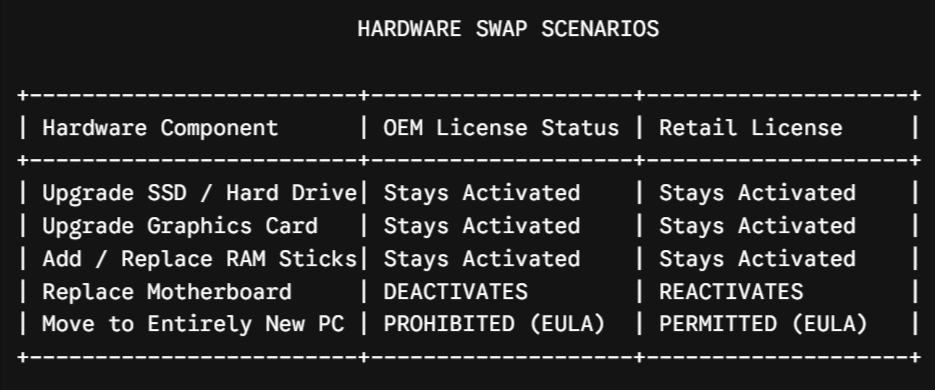
HARDWARE SWAP SCENARIOSReplacing a Motherboard on an OEM License
Because an OEM key is cryptographically tied to the motherboard's unique hardware identifier, replacing the motherboard results in Windows deactivating with an error code 0xC004C003 or 0xC004F211 (“Windows reported that the hardware of your device has changed”).
Exception: If an authorized manufacturer repair center replaced the motherboard due to a defect with an identical model, you can often reactivate it by contacting Microsoft Phone Support or having the OEM technician inject the original OEM DPK into the replacement board.
Transferring a Retail License to a New PC
To cleanly transfer a Retail license from an old computer to a new computer, follow this deactivation and reactivation procedure:
[ Old Computer ]                                    [ New Computer ]
       |                                                   |
       |-- 1. Run: slmgr.vbs /upk ------------------------>|
       |   (Uninstalls Key)                                |
       |                                                   |
       |-- 2. Run: slmgr.vbs /cpky ----------------------->|
       |   (Clears Registry Cache)                         |
       |                                                   |
       |                                                   |-- 3. Enter Retail Key in Settings
       |                                                   |   or Run: slmgr.vbs /ipk <KEY>
       |                                                   |
       |                                                   |<-- 4. Windows Connects to MS Servers
       |                                                   |    (Activation Successful)
Step 1: Deactivate on the Old PC
Open Command Prompt as Administrator on your old PC and remove the product key from the system activation manager:
DOS
slmgr.vbs /upk
Clear the key from the Windows Registry to prevent unauthorized extraction:
DOS
slmgr.vbs /cpky
Step 2: Activate on the New PC
On your new computer, open Command Prompt as Administrator and install the retail key:
DOS
slmgr.vbs /ipk XXXXX-XXXXX-XXXXX-XXXXX-XXXXX
Trigger online activation against Microsoft servers:
DOS
slmgr.vbs /ato
Alternatively, if your retail license is linked to your Microsoft Account (MSA), simply log into the new PC with the same Microsoft account, navigate to Settings > System > Activation, run the Troubleshoot tool, and select “I changed hardware on this device recently.”
10. Troubleshooting Activation & Error Codes
When investigating license types, you may encounter common activation errors indicating channel mismatches or expiration issues.
+----------------------------------------------------------------------------------------------------+
| COMMON ACTIVATION ERROR CODES & RESOLUTIONS                                                        |
+------------+------------------------------------------+--------------------------------------------+
| Error Code | Root Cause                               | Technical Resolution                       |
+------------+------------------------------------------+--------------------------------------------+
| 0xC004C003 | Product key blocked / OEM board swapped  | Use a genuine Retail key or run the        |
|            |                                          | Activation Troubleshooter after hardware.  |
+------------+------------------------------------------+--------------------------------------------+
| 0xC004F074 | KMS Server unreachable / Name resolution | Ensure device is connected to corporate    |
|            | failed during periodic check-in          | VPN/LAN; verify KMS DNS SRV records.       |
+------------+------------------------------------------+--------------------------------------------+
| 0xC004F050 | Invalid product key entered or edition   | Ensure the entered key matches the installed|
|            | mismatch (e.g., Pro key on Home edition) | edition (Home vs Pro vs Enterprise).       |
+------------+------------------------------------------+--------------------------------------------+
| 0xC004C008 | Key exceeded activation limit (Retail    | Deactivate key on previous PC using        |
|            | or MAK used on too many machines)        | slmgr.vbs /upk, then use Phone Activation. |
+------------+------------------------------------------+--------------------------------------------+
11. Frequently Asked Questions (FAQ)
What happens if I upgrade from Windows Home to Pro via the Microsoft Store?
When you purchase a Pro upgrade through the Microsoft Store on an OEM machine, you receive a Digital Entitlement (Digital License) for Pro. This upgrade license is bound to your personal Microsoft Account. If you move to a new PC, the underlying base OEM license remains on the old PC, but your Pro upgrade entitlement can often be transferred to another machine that already has a base Home license.
Why does slmgr /dli say Retail when my laptop came with Windows pre-installed?
This frequently occurs when a laptop originally equipped with an OEM license has been upgraded via free Microsoft OS promotions (such as the legacy Windows 7 to 10 or Windows 10 to 11 upgrade programs) or configured using a generic default product key linked to a digital entitlement. In many of these cases, the licensing description is updated to reflect a generic Retail channel wrapper in the licensing manager, but the underlying hardware entitlement remains governed by the original BIOS MSDM table. Check via (Get-CimInstance SoftwareLicensingService).OA3xOriginalProductKey to verify if a physical OEM key is present.
Can an OEM license ever be transferred to a new motherboard legally?
Under Microsoft's strict licensing agreement, no. However, if your motherboard was replaced by an authorized technician due to a hardware failure under warranty, Microsoft Support will validate the repair documentation and issue an activation override.
How do I know if my cheap Windows key from an online seller is legitimate?
Run slmgr.vbs /dli and slmgr.vbs /xpr. If the output displays VOLUME_KMSCLIENT channel or shows an expiration date (e.g., expiring in 180 days), you were sold an unauthorized business volume key. Genuine consumer keys sold by legitimate retailers will always display RETAIL channel and show that the machine is permanently activated.
Does linking my Windows license to a Microsoft Account convert an OEM license into a Retail license?
No. Linking an OEM license to a Microsoft Account simplifies reactivation after minor hardware maintenance (such as replacing a hard drive or resetting Windows), but it does not change the legal license channel or grant transfer rights to an entirely new PC or replacement motherboard.
Licensing Management & Lifecycle Strategy
Understanding the licensing channel operating behind your Windows installation is the single most effective way to avoid unexpected deactivations, compliance penalties, and unnecessary software purchases.
For individual users and system builders, investing in a genuine Retail license offers the highest long-term value, as it carries unrestricted transfer rights across multiple generations of custom PC builds and hardware upgrades. For businesses and IT administrators, regularly auditing workstations using automated slmgr.vbs and PowerShell CIM commands ensures that every endpoint stays within compliance, distinguishes legitimate digital entitlements from expiring KMS leases, and prevents the operational disruptions caused by gray-market key deactivations.